


 Deutsch
Download Astro Tools
After checkout, you receive access to your download link. You can find it in your order confirmation, inside your account and in the email sent after purchase.

A focused Photoshop plugin for astrophotographers who want faster, cleaner and more consistent image processing workflows directly inside Photoshop.
New setup wizard, refined user interface, improved status indicators and multiple smaller workflow, translation and bug fixes. View changelog
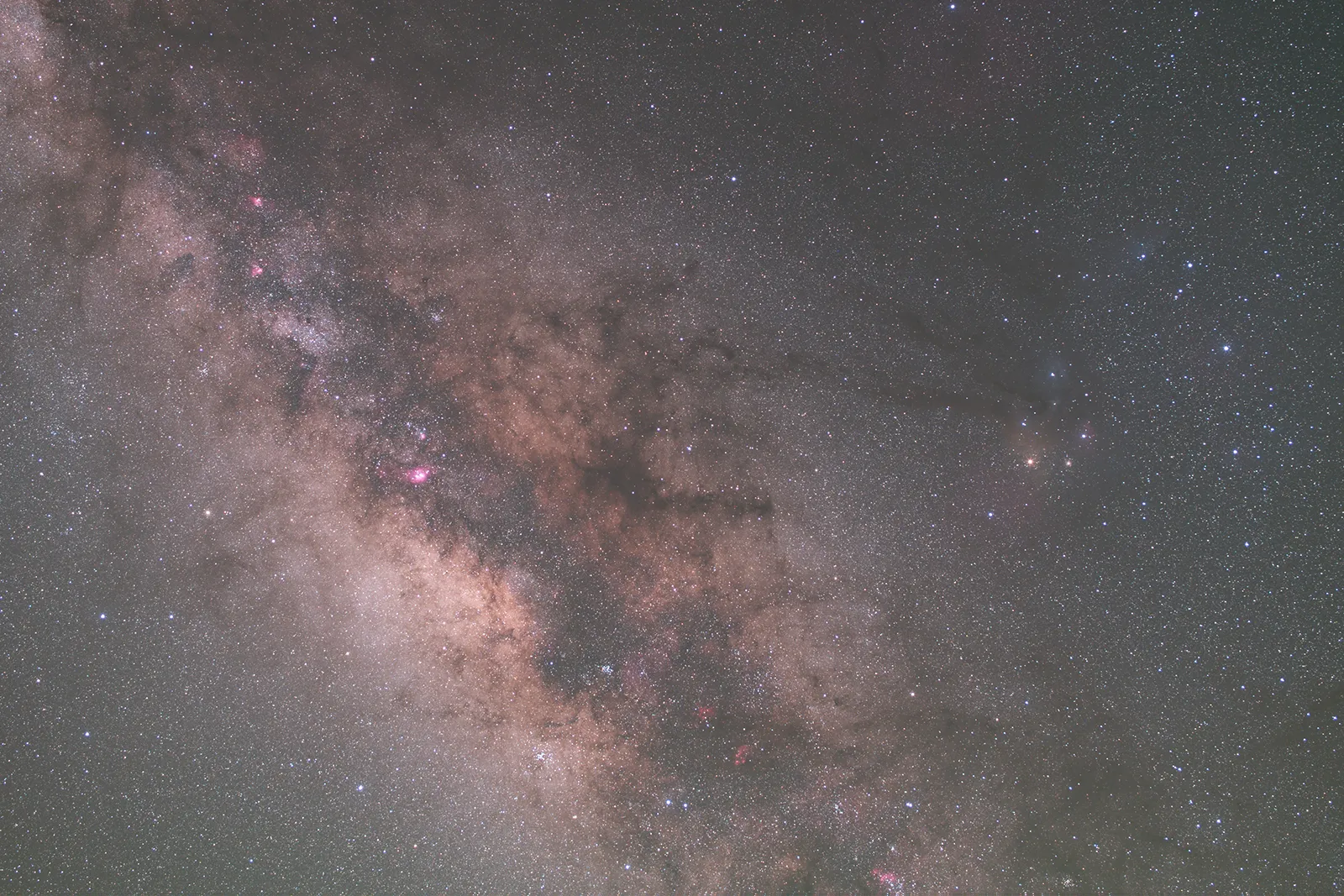
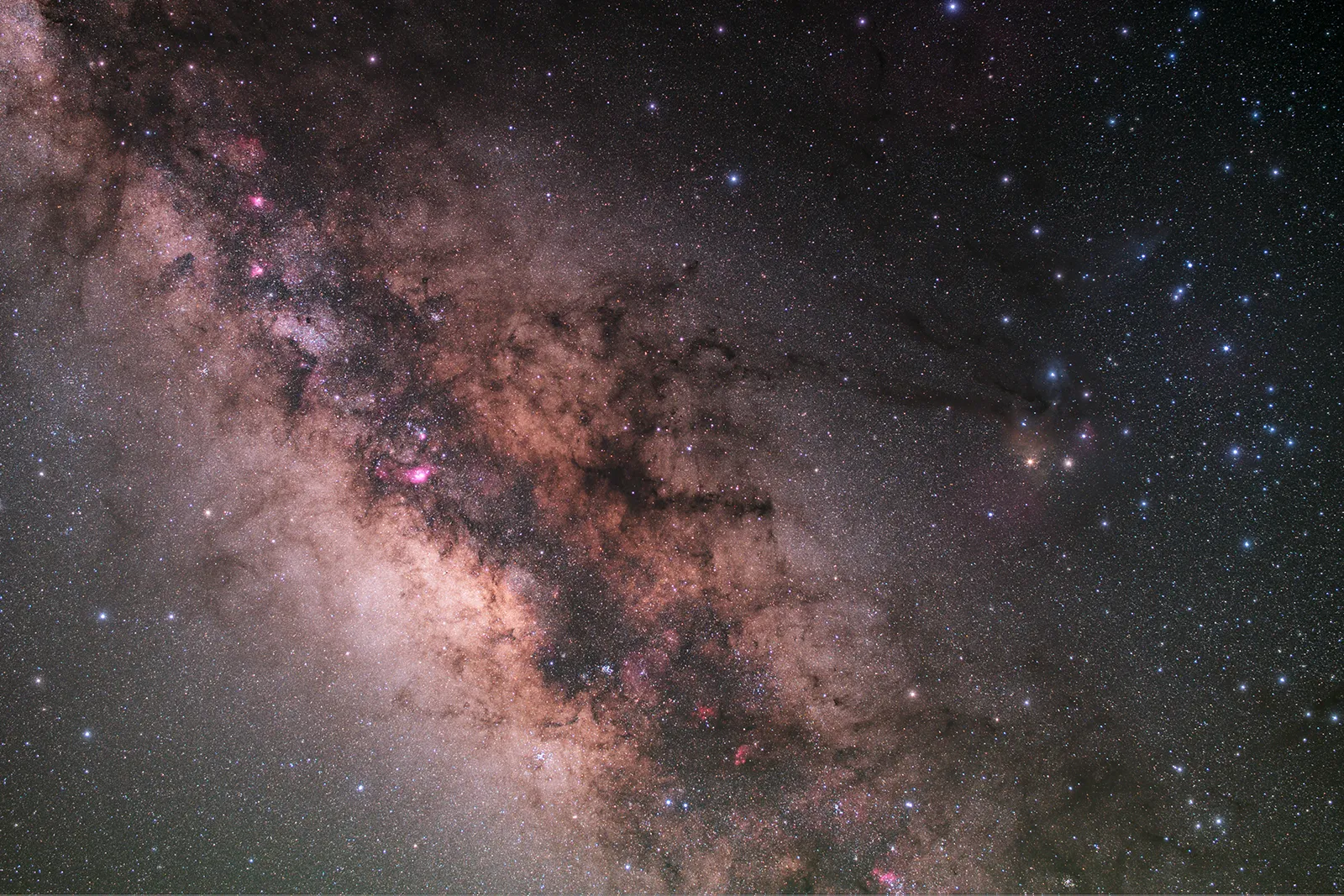
Real Image Comparison
Compare real before-and-after examples from my own processing workflow. These results show how Astro Tools can help refine contrast, detail, star handling and overall image structure without overcomplicating the Photoshop workflow.
What’s included
Astro Tools is not just a collection of random Photoshop actions. It is built around real processing steps I use in my own astrophotography workflow, including stacking, star tools, detail enhancement, Star Trails, Star Glow and guided correction workflows.
Common astrophotography editing steps are grouped into focused tools.
Use sliders, presets and live previews to control the strength and look of each workflow.
Apply selected tools to the whole image, sky areas or foreground areas where supported.
Your license key is sent by email after purchase or trial checkout.
Installation guides and workflow tutorials help you get started quickly.
Astro Tools is a one-time purchase for the current 1.x plugin generation.
Installation
After your purchase, you can download Astro Tools, install the Photoshop plugin through Creative Cloud and activate it directly inside Photoshop with your license key.
After checkout, you receive access to your download link. You can find it in your order confirmation, inside your account and in the email sent after purchase.
Download the Astro Tools ZIP file and extract it anywhere on your computer. Inside the folder you will find the Photoshop plugin installer as a .ccx file.
Double-click the .ccx file. Adobe Creative Cloud will open and ask you to confirm the installation. On Mac or Windows, you may need to allow the installation or enter your system password.
Open Photoshop and launch Astro Tools. Enter the email address used for your purchase and your license key. Activation usually takes a few seconds. After that, Astro Tools is ready to use.
License Access
Astro Tools can be used offline for up to 14 days after a successful license check. After that, an internet connection is required to refresh the activation status.
Creating an account is strongly recommended. It allows you to manage your license, downloads and activations outside of Photoshop.

Test the full version of Astro Tools with all available features before buying. The trial gives you access to the complete plugin for 7 days.
69.99 €
Includes Astro Tools 1.x updates and access to the current Photoshop plugin version.
Real workflow examples
These examples show selected Astro Tools workflows I regularly use in my own processing routine. Compare the before-and-after results for Landscape Stacking, Star Glow, Star Trails and Star Reduction directly on real astrophotography images.
Workflow Example
Load a full nightscape image sequence and let Astro Tools stack the sky and foreground separately. Similar to dedicated landscape stacking workflows, the result is automatically recombined into one cleaner final image.


Star Enhancement
Create a soft glow around bright stars directly inside Photoshop. Instead of using a physical soft-focus filter in the field, Astro Tools lets you recreate a similar atmospheric effect and fine-tune the result with adjustable settings.


Workflow Highlight
Build a complete star trail image from start to finish inside Astro Tools. The workflow can automatically reduce unwanted airplane and satellite trails during the process, making clean star trail composites much easier to create.


Star Control
Under dark skies, astrophotography images can contain so many stars that they start to hide the structure of the Milky Way. Star Reduction helps reduce distracting star fields and brings more attention back to the main details in the image.


Tutorials
The tutorial playlist covers installation, activation and the most important Astro Tools workflows. New videos are added when major features or workflows are updated, so you can always learn the current version step by step.
FAQ
Important details about compatibility, licensing, updates, the free trial and how Astro Tools works.
Astro Tools is designed for the full desktop version of Adobe Photoshop CC. For the best compatibility, I recommend using the latest available Photoshop version, especially Photoshop CC 2026 or newer.
Some backwards compatibility may be available down to Photoshop 2023, depending on the exact version and workflow. However, older Photoshop versions may not support every feature as reliably as the current release.
Astro Tools is currently a Photoshop plugin. In the future, I plan to move more processing tools to my own native code base, which could make a standalone version possible. This is a future development goal and not part of the current Photoshop plugin license.
Yes. Astro Tools works on both Mac and Windows systems that support the required Photoshop plugin environment.
The native processing code is built for Windows, Intel-based Macs and Apple Silicon Macs. This means Astro Tools supports the main desktop platforms where the full version of Photoshop is available.
You can add the free trial to your cart and complete the checkout like a normal purchase. After that, you can download the full version of Astro Tools and activate it with your 7-day trial license.
The trial is not a limited demo. You can test the full plugin for seven days and see if it fits your Photoshop workflow before buying the full license.
Creating an account is strongly recommended, because it allows you to manage your license and downloads more easily.
No. Astro Tools is currently not a subscription. Astro Tools 1.x is sold as a one-time purchase for the current Photoshop plugin generation.
A subscription model is not currently planned. However, the price may increase over time as new features, workflows and larger updates are added.
A future standalone version or a major Astro Tools 2.0 generation would likely be handled as a separate paid license.
Yes. Updates within the Astro Tools 1.x Photoshop plugin generation are included with your license.
If a future standalone version or Astro Tools 2.0 becomes available, it will most likely require a new license. Existing Astro Tools users may receive an upgrade option instead of paying the full new price again.
After purchase, your license key is shown in the order summary and also sent to you by email.
Creating an account is not strictly required, but it is strongly recommended. Your account is the easiest way to manage your license outside of Photoshop.
This is especially important if you change computers, lose access to an old Photoshop installation or need to reset an activation.
Yes. Astro Tools includes advanced astrophotography tools, but they are designed to stay simple and guided in daily use.
The plugin includes tooltips, short workflow instructions and helpful messages when a required step is missing. For example, if a tool needs a star mask first, Astro Tools can guide you toward the missing step instead of simply showing an error.
Tutorials are also available to help you understand the main workflows and get started faster.
For support, please use the contact form on the website whenever possible. This keeps requests organized and makes it easier to track installation, license or workflow questions.
You can also contact me by email or Instagram, but the contact form is the preferred support channel.
Start the full 7-day trial or get the complete Astro Tools 1.x Photoshop plugin for Mac and Windows.
Full trial access. No subscription. Built for Adobe Photoshop CC 2026.
You are currently viewing a placeholder content from Facebook. To access the actual content, click the button below. Please note that doing so will share data with third-party providers.
More InformationYou are currently viewing a placeholder content from Instagram. To access the actual content, click the button below. Please note that doing so will share data with third-party providers.
More InformationYou are currently viewing a placeholder content from X. To access the actual content, click the button below. Please note that doing so will share data with third-party providers.
More Information